


Google Fiber Mesh Wi-Fi Technology Explained: Setup, Speed and Benefits
Google Fiber's mesh Wi-Fi is not an add-on you buy separately. It is included with your plan. You get a router and mesh extenders at no extra cost. They work together to cover your whole home. The newest hardware uses Wi-Fi 7. It can deliver wireless speeds over 3 Gbps and reduce lag.
Google Fiber mesh Wi-Fi technology explained simply is this: one network, multiple access points, seamless coverage. No dead zones. No switching networks as you move from room to room. This guide covers how the technology works, what the extenders do, and how to set it up. Read on and get the most from your Google Fiber connection.
What Is Mesh Wi-Fi?
A traditional router sends a signal from one point. The further you go, the weaker it gets. Walls, floors, and furniture block it. You end up with dead zones.
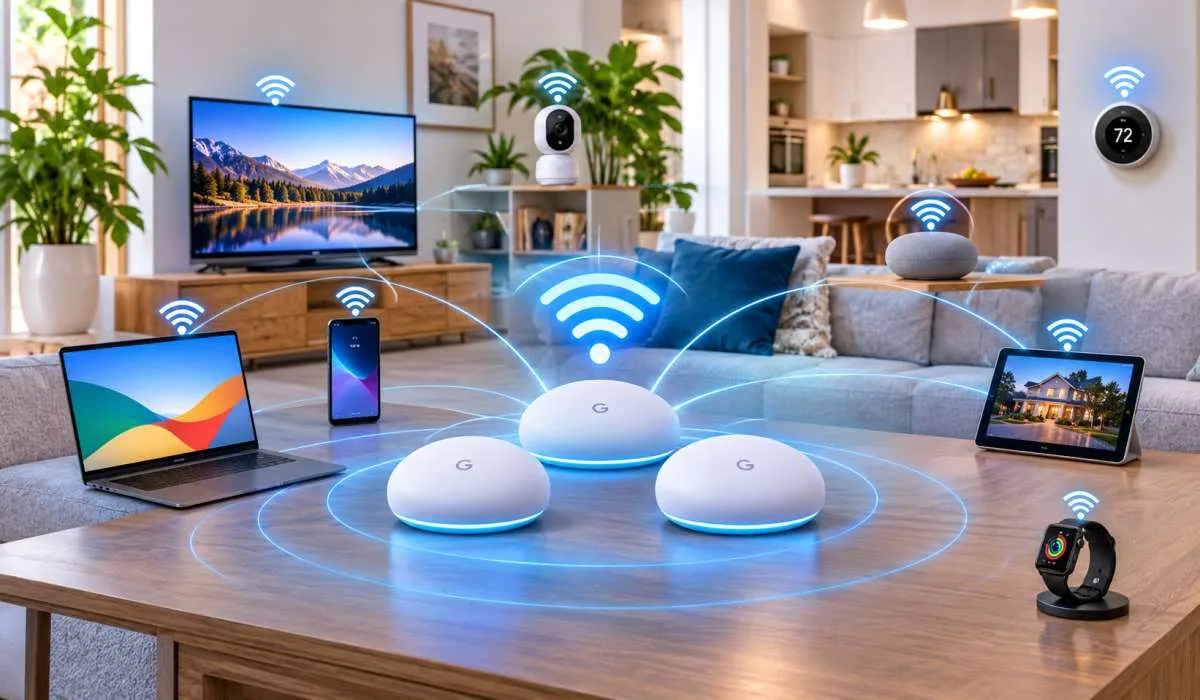
A mesh network uses multiple access points. The router is the main point. Mesh extenders are the additional points. They capture the signal and share it in hard-to-reach spots . They communicate with each other to create one seamless network. You do not need to switch networks as you move through your home.
Google Fiber includes mesh extenders with its plans. The Wi-Fi 6E and Wi-Fi 7 plans come with up to two extenders. Together, they can cover up to 5,000 square feet .
Read More: Google Fiber Edge 8 Gig Features: Price, Speed and Benefits

Google Fiber Mesh Extender: How It Works
The mesh extender is a small device that boosts your Wi-Fi signal. It connects to your router wirelessly or with an Ethernet cable. Once paired, it creates an additional access point in your home .
Placement Matters
- Where you put the extender changes how well it works. The sweet spot is usually halfway between your router and the area with weak coverage . Do not place it in the dead zone itself. The extender needs a strong signal from the router to work. If it is too far away, it has nothing good to share.
- Keep it elevated, ideally 5 to 10 feet high. Keep it away from thick walls, concrete, and metal. These materials block Wi-Fi signals .
How Many Do You Need?
- Google Fiber recommends up to two mesh extenders for a home network . Using too many can actually slow your Wi-Fi down. Each extender adds to the network's workload. If they are too close to each other, they can cause interference .
- Start with one. See if it fixes your dead zone. Add a second only if you still have weak spots.
Google Nest Wifi: A Different Option
Google also sells the Nest Wifi Pro. This is a separate product from Google Fiber. It is a mesh Wi-Fi system you can buy on its own.
The Nest Wifi Pro uses Wi-Fi 6E. It covers up to 2,200 square feet per router . It supports Matter and Thread, so it works with smart home devices. It is managed through the Google Home app, which makes it easy to set up guest networks and run speed tests .
Important: The Nest Wifi Pro is not the same as Google Fiber's included equipment. If you are a Google Fiber customer, your router and extenders come from Google Fiber. You do not need to buy a Nest Wifi Pro. If you are not a Google Fiber customer and want a Google-made mesh system, the Nest Wifi Pro is an option. But it does not support Wi-Fi 7 .
Google Mesh Wi-Fi 7: The Newest Standard
Google Fiber's newest routers use Wi-Fi 7. This is the biggest upgrade in years.
Multi-Link Operation (MLO)
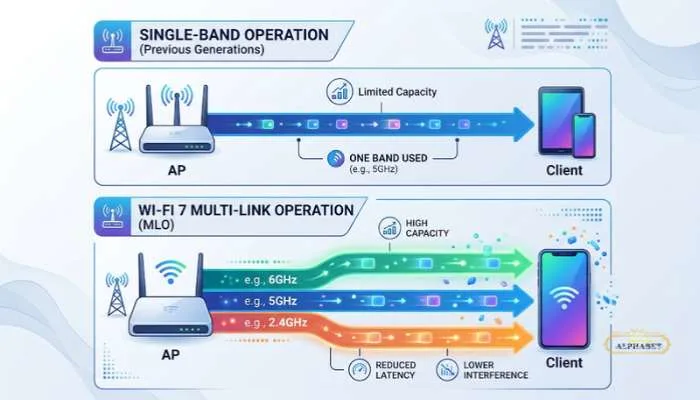
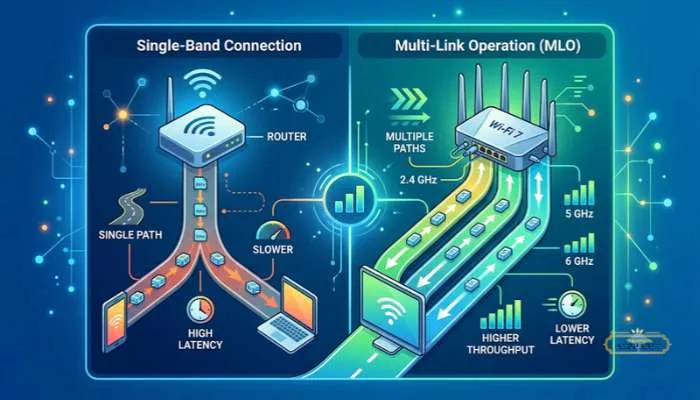
Older Wi-Fi forces your device to use one frequency band at a time. If that band is crowded, your connection slows down. Wi-Fi 7 uses Multi-Link Operation. It lets the router and extenders use multiple bands at the same time .
Think of it like a highway. Older Wi-Fi is a single lane. If there is traffic, you are stuck. Wi-Fi 7 opens multiple lanes at once. If one lane is congested, your data flows through the others .
Speed
Wi-Fi 7 can deliver wireless speeds up to 3.4 Gbps across your home . That is up to four times faster than Wi-Fi 6 . You can stream 8K video, game with near-zero lag, and run video calls without stuttering.
The Wi-Fi 7 router and extenders have ports for hardwired speeds up to 10 Gbps . The hardware is valued at up to $1,699, but it is included with your plan at no extra cost .
Which Plans Include Wi-Fi 7?
Wi-Fi 7 is included with the Home 3 Gig and Edge 8 Gig plans . The 1 Gig plan uses Wi-Fi 6E equipment . Check your plan to see which hardware you have.
Google Mesh Setup: How to Pair Your Extenders
The setup process is simple. You can use the Google Fiber app or the WPS buttons on the devices.
Using the WPS Buttons
- Plug the mesh extender into power near the router. Press the power button. Wait for the status light to turn on.
- Press the WPS button on top of your router. The light will blink blue.
- Press the WPS button on top of the mesh extender. The light will blink green.
- Wait for the extender's light to turn solid green or yellow. That means it is paired .
Using the Google Fiber App
The app walks you through the process step by step. It also has a Network Health feature. You can use it to test the signal in different spots. The app will score the spot as excellent, good, or poor. This helps you find the best place for the extender .
Wired vs Wireless
You can pair the extender wirelessly or with an Ethernet cable. Google Fiber recommends wireless pairing for most people. But for optimal performance, you can connect the extender to the router's LAN port with an Ethernet cable .
You May Also Read: Benefits of Using Google Fiber Internet for Faster Wi-Fi
Google Wifi Router: What Comes with Your Plan
Your Google Fiber plan includes everything you need. You do not have to buy a router separately.
| Plan | Router | Mesh Extenders Included |
|---|---|---|
| 1 Gig | Wi-Fi 6E | 1 extender |
| 2 Gig | Wi-Fi 6E | Up to 2 extenders |
| Home 3 Gig | Wi-Fi 7 | Up to 2 extenders |
| Edge 8 Gig | Wi-Fi 7 | Up to 2 extenders |
The router and extenders are yours to use while you are a customer. There are no rental fees. If you need an additional extender beyond what is included, you can buy one for $85. There is a limit of six extenders per household .
FAQs
1. What is a Google Fiber mesh extender?
It is a device that expands your Wi-Fi coverage. It captures the signal from your router and shares it in areas with weak coverage. Google Fiber includes up to two extenders with its plans at no extra cost .
2. How does Google Fiber mesh Wi-Fi work?
The router and extenders create a single network. They communicate with each other to provide seamless coverage. Your devices connect to the strongest signal automatically. You do not have to switch networks as you move around your home .
3. What is the difference between Google Fiber mesh and Google Nest Wifi?
Google Fiber mesh equipment comes with your Google Fiber plan. It is the router and extenders provided by Google Fiber. Google Nest Wifi is a separate product you buy if you are not a Google Fiber customer. The Nest Wifi Pro uses Wi-Fi 6E and does not support Wi-Fi 7 .
4. How many mesh extenders do I need?
Google Fiber recommends up to two. Start with one. If you still have dead zones, add a second. Using too many can cause interference and slow your network down .
5. Where should I place my mesh extender?
Place it halfway between your router and the area with weak coverage. Keep it elevated, ideally 5 to 10 feet high. Avoid thick walls, metal, and concrete. Do not place it in the dead zone itself .
6. What is Wi-Fi 7 and why does it matter?
Wi-Fi 7 is the newest Wi-Fi standard. It uses Multi-Link Operation to send data across multiple frequency bands at once. This reduces lag and allows wireless speeds up to 3.4 Gbps. It is included with the Home 3 Gig and Edge 8 Gig plans .
7. How do I set up my Google mesh extender?
You can use the WPS buttons. Press WPS on the router, then WPS on the extender. Wait for the light to turn solid green. Or use the Google Fiber app, which walks you through the process and helps you find the best placement .
8. Does Google Fiber charge for the router and extenders?
No. The router and mesh extenders are included with your plan at no extra cost. There are no rental fees. If you want more than the included number of extenders, you can buy additional ones for $85 each .